Everything you need to install PC AutoPilot and run your first automation in under 10 minutes.
- Windows 10 (version 1903 or later) or Windows 11
- 4 GB RAM minimum; 8 GB recommended
- 200 MB free disk space for installation
- Internet connection required for license activation and AutoPilot AI
- No administrator rights needed — installs and runs entirely per-user
- Download the PCAutoPilot_Setup installer from pcautopilot.com/download.
- Double-click the installer. It's digitally signed with an Extended Validation (EV) certificate, but because PC AutoPilot is new, Windows or your browser may still show a one-time "not commonly downloaded" or SmartScreen prompt — that's a newness check, not a threat warning. Click Keep, then "More info" → "Run anyway." The download page shows exactly what each prompt looks like.
- PC AutoPilot installs to
C:\Users\[You]\AppData\Local\Programs\PCAutoPilot. There's no folder to choose — it always installs to your own user account, which is why it needs no administrator rights. - Click Install. Setup takes about 30 seconds.
- PC AutoPilot launches automatically after installation.
SmartScreen warning? See the FAQ entry below. It's normal for a newly released app and safe to continue — click "More info → Run anyway." Just make sure you downloaded from pcautopilot.com.
When PC AutoPilot opens for the first time, a short 4-step setup wizard walks you through the basics (Welcome → RAM Boost → PC Cleanup → Schedule). Follow it or skip it — either way:
- Your 14-day free trial starts automatically — full access, no credit card required. It runs for 14 days from the first time you open the app.
- Already purchased? Paste your license key in Settings → License & Plan at any time.
Your remaining trial days are always visible in the sidebar on the left.
Tip: Your license key is sent by email immediately after purchase. It's six short groups of letters and numbers separated by dashes. If you don't see it, check your spam folder or use the contact form below and we'll resend it.
PC AutoPilot has two UI modes you can switch between at any time. They control the same underlying features — Power Mode just exposes more settings and detail.
| Feature | Simple Mode | Power Mode |
|---|---|---|
| One-click cleanup | ✓ | ✓ |
| Auto-organize downloads | ✓ | ✓ |
| RAM optimizer | ✓ | ✓ |
| Macro recording | — | ✓ Record, build and schedule your own macros |
| Cleanup target selection | — | ✓ Tick exactly which cleanup categories run |
| Live process table | — | ✓ See every running process with CPU/RAM usage |
| Per-item cleanup preview | — | ✓ Review individual files before deleting |
| Custom auto-organize rules | — | ✓ Define your own folder rules beyond the defaults |
| Startup programs & process controls | — | ✓ Manage startup apps and end runaway processes |
| Activity Log detail | Summary | Full per-file log |
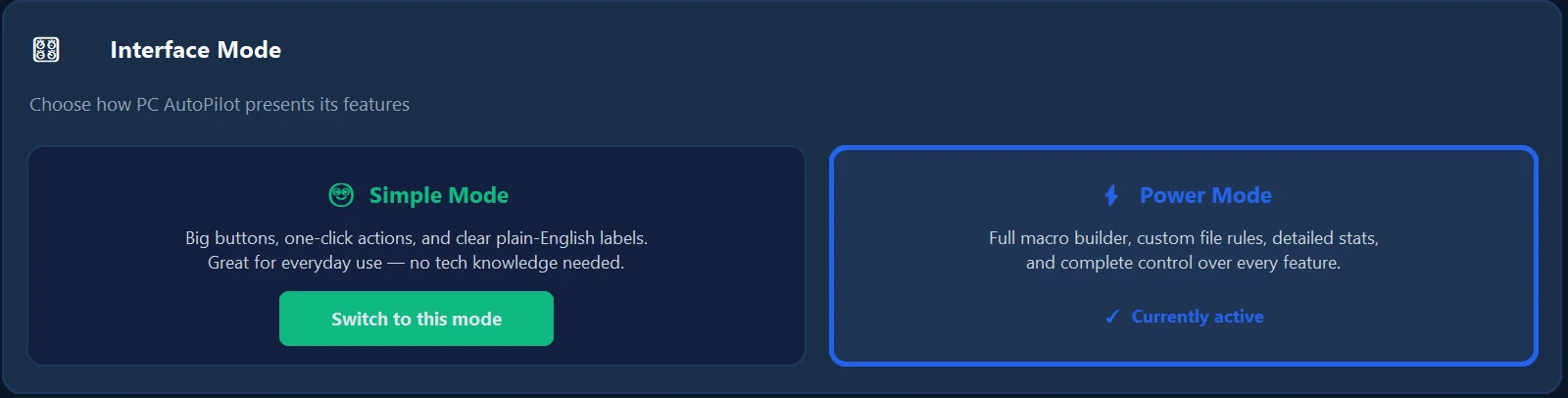
To switch modes: go to Settings → Interface Mode and click Switch to this mode under Simple Mode or Power Mode. The app redraws in the new mode straight away — no restart. In Power Mode, the ← Switch to Simple Mode button at the top right of the page also switches back.
Which should I use? Start in Simple Mode — it's designed for daily use without overwhelming you. Switch to Power Mode when you want to audit exactly what's being cleaned, set custom rules, or monitor running processes in real time.
The fastest way to see PC AutoPilot in action: run your first cleanup. It scans temporary files, browser cache, and recent-file history, and tells you how much of what it finds can actually be removed right now — Windows holds some temporary files open, and those are reported separately rather than counted toward the total. Scan first to see the real number for your PC.
- Click Privacy & Cleanup in the left navigation sidebar (or, in Simple Mode, the Clean Up My PC tile on the Dashboard).
- Click 🔍 Scan First.
- Review the scan results — you'll see exactly what will be removed and how much space is recovered.
- Click 🧹 Clean Now and confirm. Done.
All user files are sent to the Windows Recycle Bin first — nothing is permanently deleted without your review. You can always restore items from the Recycle Bin if needed.
Record any sequence of keyboard and mouse actions, then replay them on demand or on a schedule — no coding required.
Macros let you record any sequence of mouse clicks and keystrokes, then replay them with one click or on a schedule.
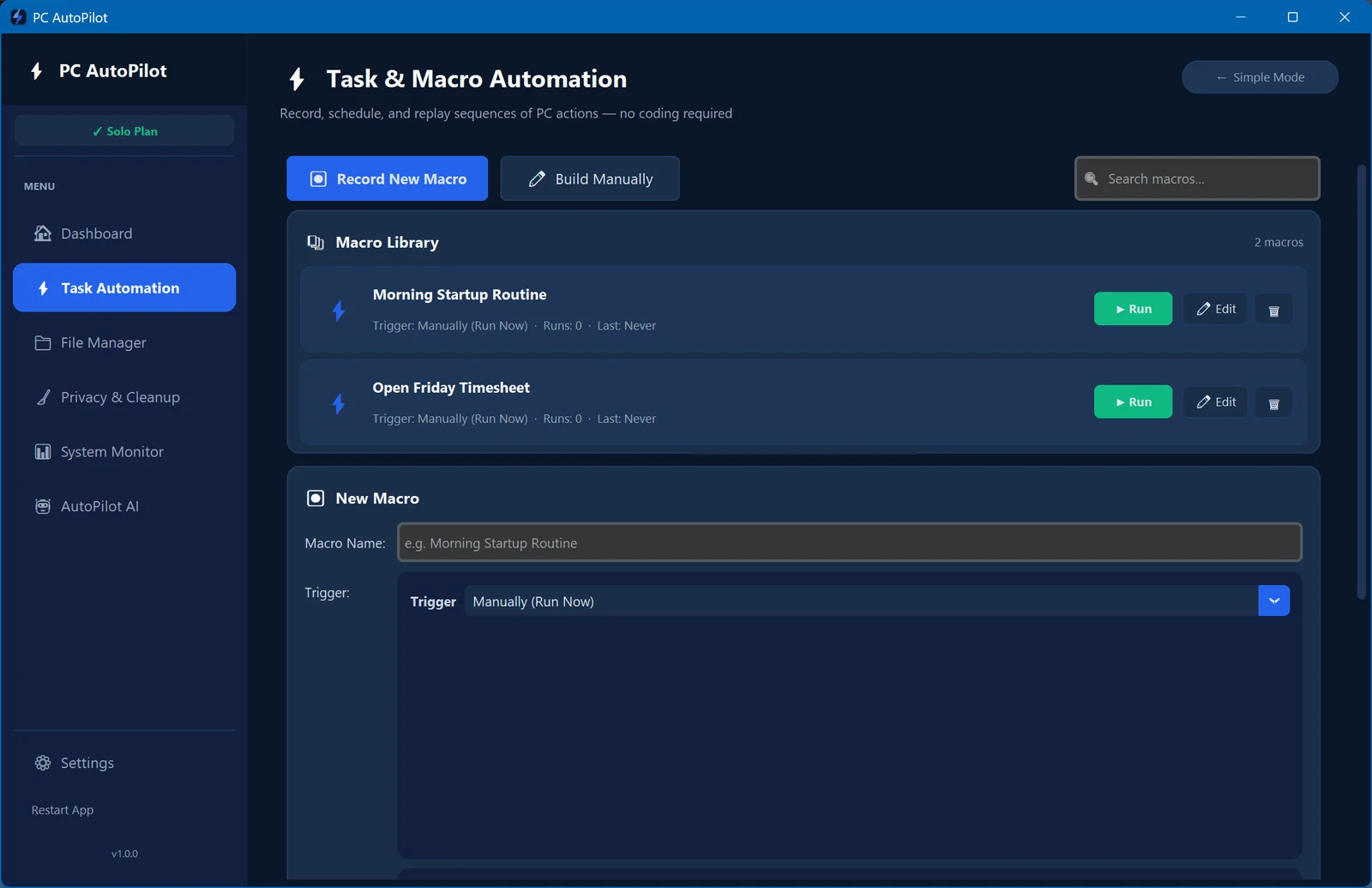
- Switch to Power Mode, then go to Task Automation in the left navigation sidebar.
- Click ⏺ Record New Macro, then OK on the "Before you record" warning.
- Perform the actions you want to record at a normal pace — every click and keystroke is captured.
- Click the ⏹ Stop Recording button when you're done.
- Type a name for your macro and click Save Macro.
Tips for reliable macros: Move slowly during recording — quick movements may not replay accurately. After saving, click ✏ Edit on the macro to load it back into the builder, where you can add steps (new steps go on the end) or change its name and trigger. Test your macro at least once before scheduling it.
Any saved macro can be set to run automatically every day at a time you choose.
- On the Task Automation page (Power Mode), click ✏ Edit on the macro you want to schedule.
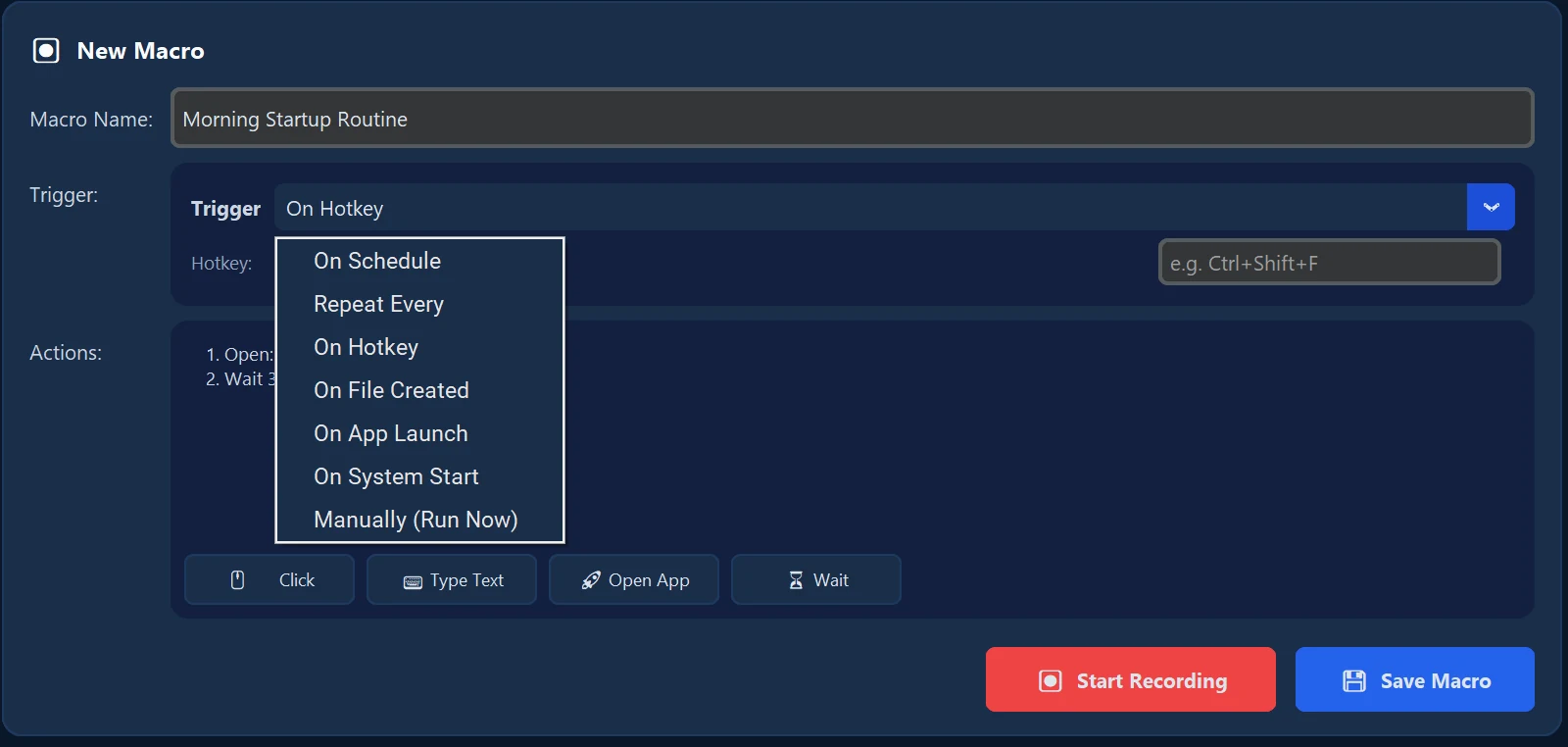
- Set its trigger to On Schedule.
- Type the run time (for example
11:00 PM) and click 💾 Save Macro.
Want it more often than once a day? Choose Repeat Every instead of On Schedule and pick an interval — every 15 minutes, every 2 hours, and so on.
If PC AutoPilot can't read the time you typed, it won't let you save the macro until it's fixed. And if a saved macro can't run for any reason, its card in the Automation list shows a yellow ⚠ Won't run note saying why.
Scheduled tasks run silently in the background even when PC AutoPilot is minimized to the system tray. All completed runs are logged in the Activity Log.
Each macro has one trigger — pick it from the trigger menu in the macro editor:
Automatically organize and deduplicate your files — so your Downloads folder and Desktop never become a mess again.
PC AutoPilot can automatically sort files in your Downloads folder and Desktop into categorized subfolders based on file type. Files are moved — never deleted.
To sort a folder now: in Simple Mode, open File Manager and click Go → on Organize My Downloads or Clean Up My Desktop. To sort your Downloads folder automatically, turn on Organize my files automatically (Simple Mode) or Run file organizer automatically under ⏰ Auto-Schedule (Power Mode) — every day at 11 PM by default.
The Duplicate Finder scans a folder for identical files — matched by content, not just by filename — and lets you review and remove them.
- Go to File Manager in Power Mode and find the 🔍 Duplicate File Finder card. (In Simple Mode, Find Duplicate Files checks your Downloads and Desktop.)
- Choose a folder to scan. It looks exactly where you point it and nowhere else — including personal folders like Pictures or Documents, if you choose them.
- Review the results — each group is headed by the file name, the number of copies and the size of each copy. Below that, every copy is listed with the folder it's in and an Open button for that folder. One copy in each group is marked KEEP; each of the others has a DELETE tick box.
- Select which copies to remove, then click Delete Selected.
Duplicates you remove go to the Windows Recycle Bin, so you can put them back. If Windows can't recycle a particular file — a drive with no Recycle Bin, a bin too small for the file, or "remove files immediately" turned on — the app tells you before it deletes anything.
In Simple mode nothing is ticked for you: you choose every file that gets removed. In Power Mode only obvious extra copies in the same folder — files named "x (2)" or "x - Copy" — are ticked in advance, and never the original.
Keep your PC clean, fast, and healthy with automated cleanup, real-time monitoring, and scheduled maintenance.
The Privacy & Cleanup tool removes clutter that slows down your PC and exposes your file activity:
- Temp files — Windows
%TEMP%folder and system temp files - Browser cache — Chrome and Edge caches (Firefox available in the Power-mode scan). Cookies and saved logins are never touched.
- Recent file history — Windows Recent Items list (your filenames won't appear in Open dialogs)
- Recycle Bin — Empty the Windows Recycle Bin with one click
To run a cleanup: go to Privacy & Cleanup, click 🔍 Scan First (in Power Mode, tick the targets you want and click 🔍 Scan Now), review the results preview, then click 🧹 Clean Now.
How deletion works: All user files are moved to the Recycle Bin first so they can be recovered. Only auto-regenerated system temp files are permanently deleted — Windows recreates these on its own anyway.
The System Monitor dashboard gives you a live view of your PC's health:
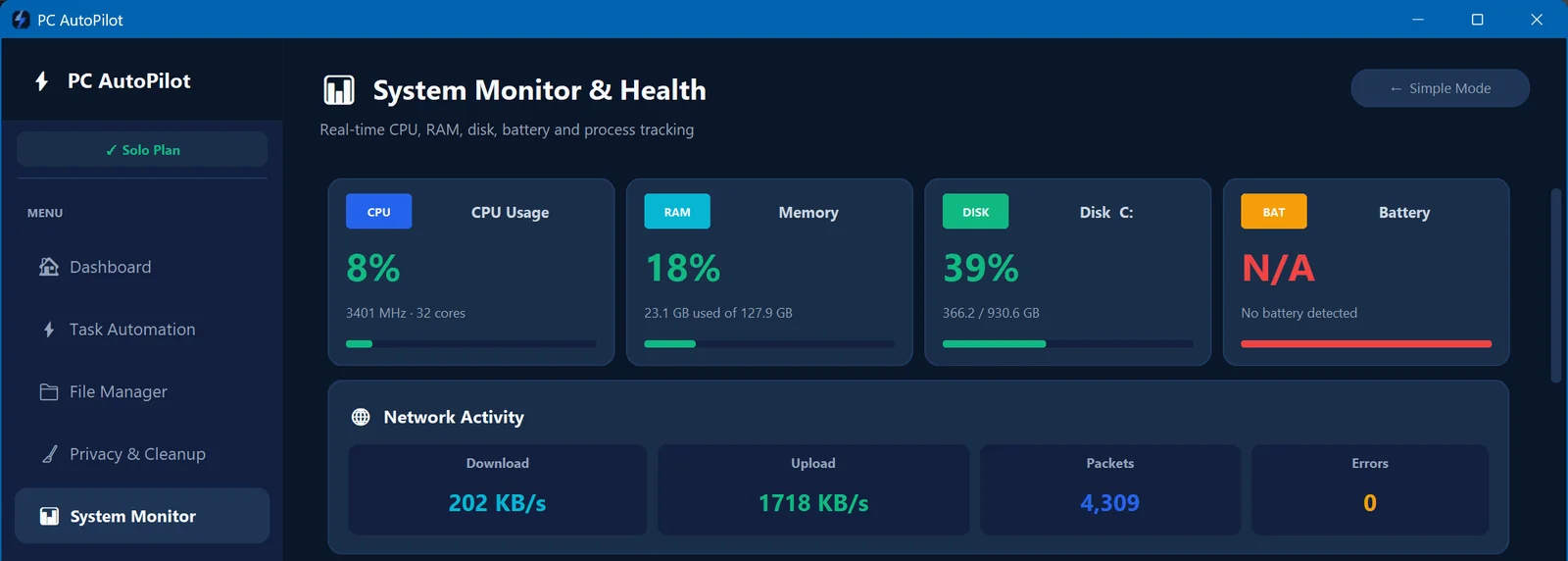
- CPU usage — current percentage and core count
- RAM usage — used GB vs. total installed
- Disk health — free space remaining on each drive
- Battery — percentage and charging status (laptops only)
PC AutoPilot sends a Windows toast notification when:
- CPU stays pinned above 90%
- RAM usage exceeds 85%
- A drive passes 90% full, or your battery runs low
Health alerts can be switched on or off under Settings → Notifications ("High CPU / RAM alert").
In Simple Mode, go to the Task Automation page and flip the one-toggle cards (in Power Mode, use ⏰ Auto-Clean Schedule on Privacy & Cleanup and ⏰ Auto-Schedule on File Manager) to enable automatic background maintenance:
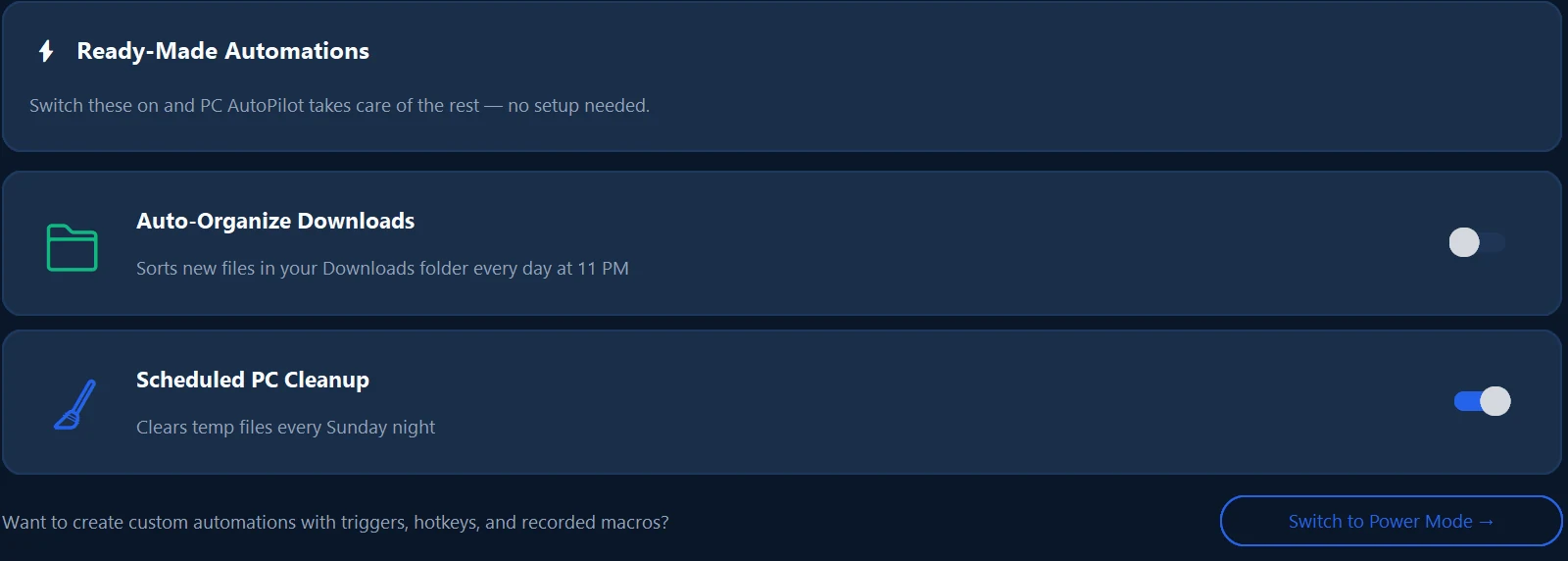
- Scheduled PC Cleanup — Clears Windows temp files on a schedule (weekly by default) without any prompts
- Auto-Organize Downloads — Automatically sorts new files in your Downloads folder
All scheduled tasks run silently in the background and are logged in the Activity Log, which you can review at any time.
Free up working memory instantly without closing any apps. One click reclaims RAM that background processes are holding but not actively using.
Over time, apps that are running in the background quietly hold onto RAM even when they're not doing anything. Windows doesn't automatically reclaim this memory — it waits for pressure. The RAM Optimizer forces Windows to flush those inactive memory pages, immediately freeing working memory for the apps you're actually using.
To use it: click ⚡ Boost RAM on the Dashboard's Free Up RAM card (in Power Mode, the Boost RAM quick action), or open System Monitor: its 🚀 RAM Boost card shows how much memory is in use and has a ⚡ Boost RAM Now button.
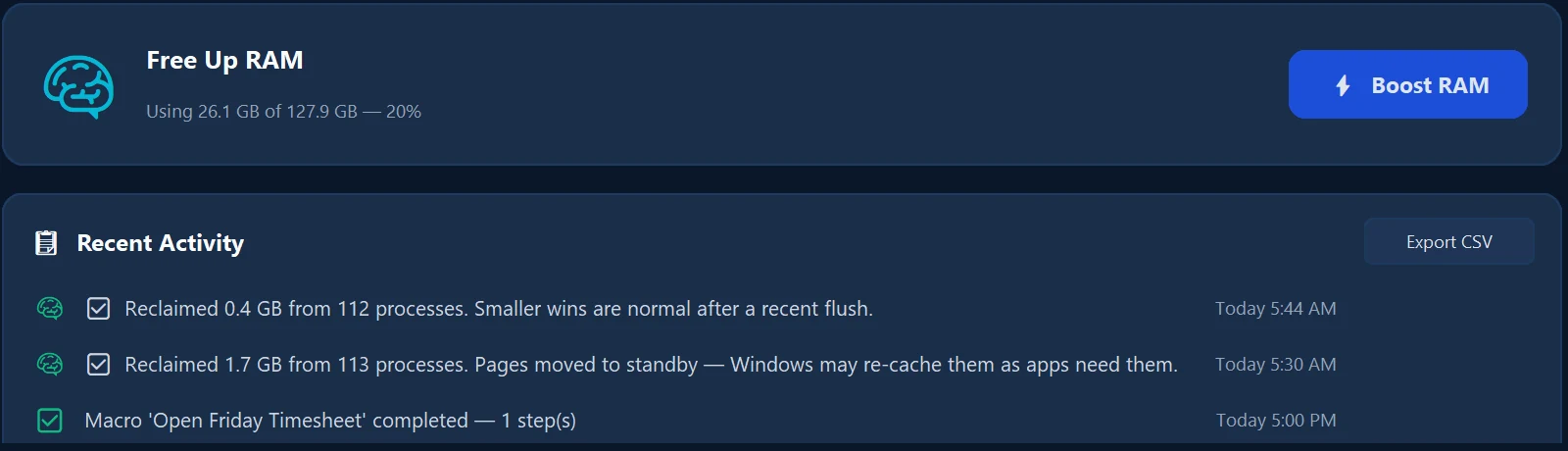
The RAM Optimizer does not close any programs or lose any data. It flushes inactive memory pages — background apps will simply reload their working set from disk when they need it again, exactly as Windows would do on its own under memory pressure.
The RAM Optimizer is most effective in these situations:
- Before a memory-intensive task — Opening a large video edit, running a VM, or compiling code. Clearing inactive RAM first gives you a faster start with fewer pauses.
- After closing a heavy app — Browsers, games, and design tools often hold onto memory long after you close them. One click reclaims it immediately instead of waiting for Windows to catch up.
- When your PC feels sluggish but you haven't rebooted recently — Memory fragmentation from hours of multitasking is a common cause. RAM optimization often restores responsiveness without a full restart.
- On PCs with 4–8 GB RAM — Low-RAM systems benefit most because there's less headroom before Windows has to start paging heavily to disk.
What not to expect: RAM optimization is not a performance silver bullet. It won't fix a slow hard drive, an overheating CPU, or apps that are genuinely CPU-bound. If your PC is consistently slow, use the System Monitor to check whether the bottleneck is CPU, disk, or RAM before optimizing.
A built-in AI assistant powered by Claude (Anthropic) that you can talk to in plain English. Ask questions, get explanations, and let it guide you through your PC tasks.
AutoPilot AI understands your PC's current state — storage usage, running processes, live system stats — and can give you specific, actionable guidance. Ask it anything:
- "How do I set up a macro to run every day?"
- "Why is my PC running slow?"
- "How do I build a macro to open Chrome and Gmail every morning?"
- "What files are taking up the most space?"
- "How do I stop Windows from tracking my recently opened files?"
The AI can suggest specific cleanup actions, walk you through feature setup step-by-step, diagnose performance issues, and explain how to build a macro in the recorder — step by step.
AutoPilot AI is included on every plan — Solo and Family Pack. It uses your own Anthropic API key:
| Plan | Price | Machines | AI Access |
|---|---|---|---|
| Solo | $29 | 1 PC | Included (bring your own API key) |
| Family Pack | $58 | 3 separate keys | Included |
API key required: AutoPilot AI uses your own Anthropic API key (billed separately at Anthropic's standard rates). Enter it in Settings → AutoPilot AI. This keeps your data private — queries go directly from your PC to Anthropic, not through our servers.
Choosing a model. In Settings → AutoPilot AI you can choose how capable — and how costly — the assistant is: Fast (lowest cost), Balanced (recommended, and the default) or Smartest (higher cost). After entering your key, click Test: it checks your key against the model you picked, and if your key can't use that model it tells you and lets you pick another.
| What to ask | What it does |
|---|---|
| "Clean up my PC" | Suggests which cleanup actions to run based on current disk state and usage patterns |
| "Find duplicate files" | Runs the duplicate scan on your Downloads and Desktop and reports what it found |
| "Set up auto-organize for my Downloads" | Walks you through the File Manager setup step-by-step, with recommended settings for your folder |
| "My computer is slow" | Diagnoses top CPU and RAM consumers, checks for low disk space, and suggests specific fixes |
| "Record a macro for [task]" | Guides you through the macro recorder step-by-step, with tips tailored to your described task |
Complete step-by-step walkthroughs for the most useful things you can set up with PC AutoPilot. Follow any of these end-to-end and your PC will run itself.
Goal: your PC cleans itself and organizes itself every week — completely silently, without you touching anything.
- Enable the weekly clean: In Simple Mode, go to Task Automation and toggle on Scheduled PC Cleanup (weekly on Sunday by default) . The scheduled clean covers Windows temp files; run a full cleanup from the Privacy & Cleanup page whenever you want browser cache and recent-file history cleared too.
- Enable Auto-Organize: On the same page, toggle on Auto-Organize Downloads. You can also click Go → on Organize My Downloads in the File Manager once to sort everything already in there.
- Enable System Monitor alerts: Go to Settings → Notifications and make sure High CPU / RAM alert is on.
- Verify it ran: After the first scheduled run, check the Dashboard activity feed and confirm the tasks completed as expected.
Once this is set up, you never have to think about PC maintenance again. The Activity Log will tell you exactly what ran, when, and what it cleaned — every week.
Goal: press one hotkey when you sit down at your desk and have everything you need automatically open, arranged, and ready — browser, email, your daily tools.
- Plan your routine first. Write down exactly what you do every morning in order: open Chrome → go to Gmail → open Slack → open your project management tool → arrange the windows. That sequence becomes your macro.
- Start recording: In Power Mode, go to Task Automation and click ⏺ Record New Macro, then OK. Now perform your morning routine exactly as you normally would, at a normal pace.
- Stop recording: When you've opened everything you need, click ⏹ Stop Recording. Give the macro a name like "Morning Startup" and click 💾 Save Macro.
- Test it once: Close everything. Click ▶ Run on the macro's card. Watch it replay. If a step misses (a window didn't load fast enough), record it again and pause for a couple of seconds at that point — pauses longer than a second are recorded as waits. Steps can't be inserted mid-macro: the ⏳ Wait button adds one only at the end.
- Assign a hotkey: Click ✏ Edit on the macro → set the trigger to On Hotkey → type the key combination you want (e.g.,
Ctrl+Shift+M) → 💾 Save Macro. Now that hotkey works anywhere in Windows. - Optional — run it at boot: Set the trigger to On System Start and turn on Launch on Windows startup in Settings — the routine then runs each time PC AutoPilot starts with your PC.
Tip: For web-based tools, record the macro after the tabs are already open — just record the navigation between them. Re-opening tabs from scratch can fail if the browser takes longer to load than when you recorded it.
Goal: take a Downloads folder with thousands of random files accumulated over years and sort it into clean subfolders in one go.
- Run Duplicate Finder first. Go to File Manager (Power Mode) → 🔍 Duplicate File Finder, point it at your Downloads folder, and let it scan. Review the duplicates — select the ones to remove and click Delete Selected. They go to the Recycle Bin, not permanent deletion. Do this before organizing so you don't move duplicates into their tidy new homes.
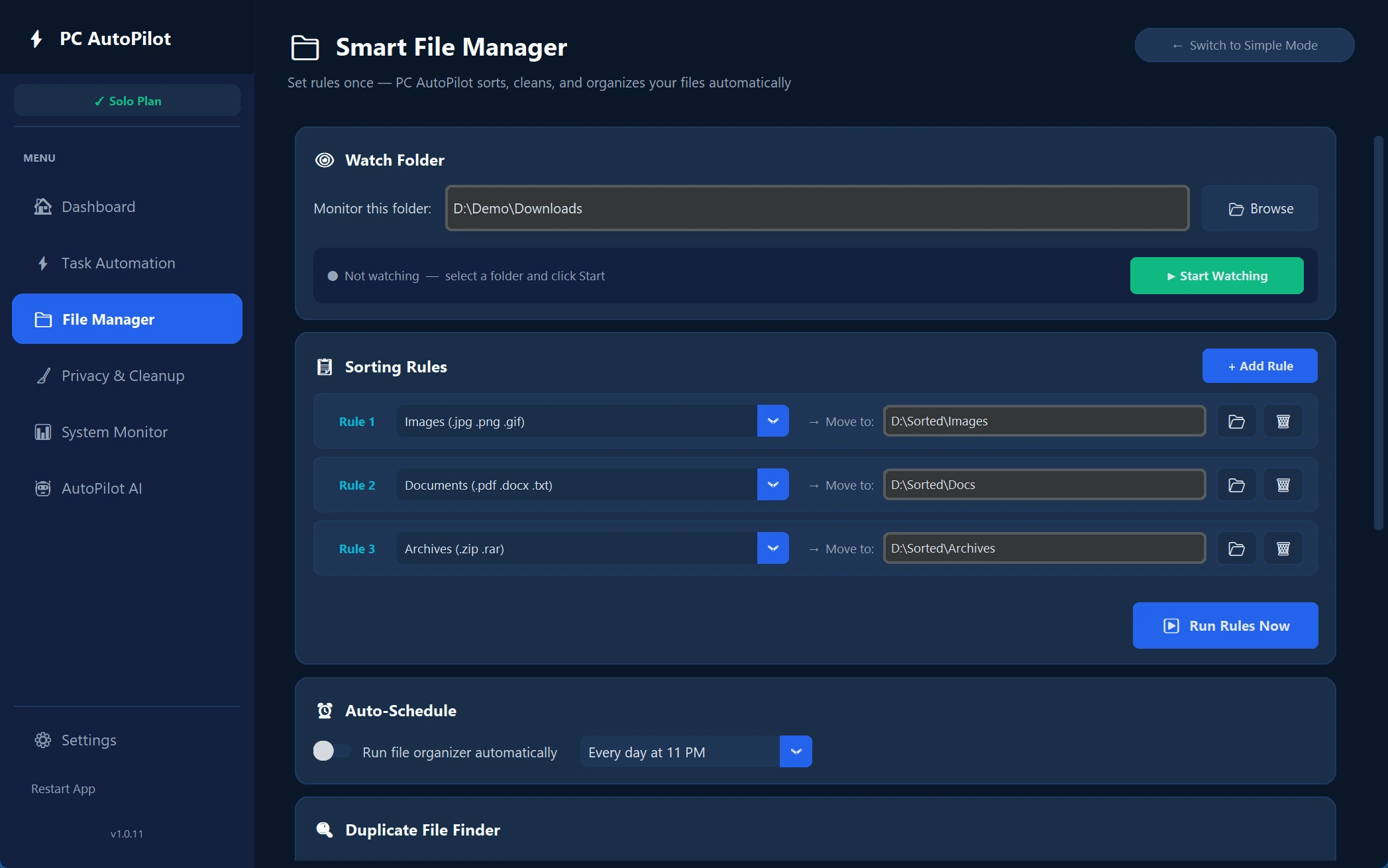
- Set the Watch Folder. Switch to Power Mode first (Settings → Interface Mode → Switch to this mode under Power Mode). Go to File Manager and put your Downloads folder in the 👁 Watch Folder box.
- Review and customize the rules. Under 📋 Sorting Rules, pick a file type for each rule and the folder to move it to — say, all images into a Photos folder. Click + Add Rule for more. Rules match by file type (not by filename).
- Click ▶ Run Rules Now. PC AutoPilot checks every file in the watch folder against your rules and moves each match to that rule's folder. When it finishes, a message tells you how many files were moved. This can take a few minutes for very large folders — let it complete.
- Review the result. Open your Downloads folder. You'll see clean subfolders containing the sorted files. Anything that didn't match a rule simply stays in the root Downloads folder — review those manually or add rules to catch them next time.
- Click ▶ Start Watching. Now that the folder is clean, new files that match your rules are sorted as they arrive, for as long as PC AutoPilot stays open.
Important: Auto-organize moves files. Files are moved, never deleted — and every move is logged in the Dashboard activity feed, so you can always see where a file went.
Goal: transfer your license, settings, and macros to a new PC without losing anything.
- Copy your macros (optional). There's no in-app export yet — your macros live as small
.jsonfiles in%LOCALAPPDATA%\Programs\PCAutoPilot\macros. Copy that folder to a USB drive or cloud folder you can reach from the new PC. - Note your settings. On your old PC, go to Settings and take a screenshot or write down your cleanup schedule and any custom Auto-Organize rules. These aren't automatically transferred.
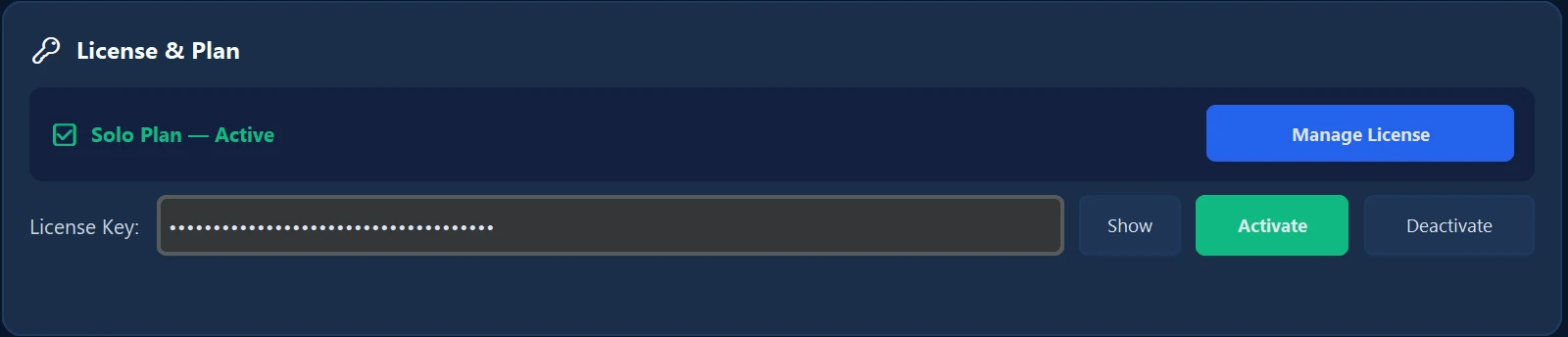
- Deactivate on the old PC. Go to Settings → License & Plan and click Deactivate. This frees up the activation slot on that licence key so you can use it on the new PC. If you're keeping the old PC running too, skip this step — but remember each licence key covers one machine at a time.
- Install on the new PC. Download the latest installer from pcautopilot.com/download and run it on the new machine.
- Activate with your existing key. Open Settings → License & Plan and paste your original license key. No new purchase needed.
- Restore macros. Paste the copied
.jsonfiles into the samemacrosfolder on the new PC, then restart the app — your macros appear in the library. - Reconfigure settings. Re-enter your cleanup schedule and Auto-Organize rules from your notes. These take about 5 minutes to set up.
License coverage: a Solo licence covers 1 machine, and the key is movable — deactivate on the old PC, activate on the new one. The Family Pack gives you three separate one-machine keys, each individually movable. When moving to a new PC and retiring the old one, always deactivate the old machine first to keep that key free. Hit a snag transferring? Contact us below — we'll sort it out.
Quick answers to the most common questions about PC AutoPilot.
General
Yes, completely safe. PC AutoPilot runs 100% locally on your PC. No files are ever uploaded or transmitted. The only network requests the app makes are:
• License validation with Keygen.sh — your license key only, no file data
• Crash reports to Sentry — error data only, opt-in, can be disabled in Settings
• AutoPilot AI queries to Anthropic's API — only if you enable AI and enter your own API key
The app continues to run but most automation and cleanup features are locked. You can still view your Activity Log and access Settings. To unlock everything, purchase a license at pcautopilot.com and activate it in Settings → License & Plan.
30-day money-back guarantee, no questions asked. If PC AutoPilot doesn't work out for any reason within 30 days of purchase, use the contact form below from the email address you used at purchase and we'll process a full refund through Stripe within 1 business day. Or copy our email: [email protected]
The free 14-day trial exists specifically so you can try every feature before paying — no credit card required for trial. Refunds are for the rare case where something doesn't fit after purchase.
Not yet. Windows 10/11 is our current focus with v1.0. Mac support is planned as the next platform, followed by Linux. If you'd like to be notified when Mac support launches, drop us a note using the form below.
Use the contact form at the bottom of this page — we respond to every message, typically within a few hours on business days. Or copy our email: [email protected]
Email [email protected] (or use the contact form below). The most useful things to include:
- What you did, what you expected, and what actually happened — a sentence or two is plenty.
- A screenshot of anything that looked wrong.
- The newest log file. Paste
%LOCALAPPDATA%\Programs\PCAutoPilot\logsinto the File Explorer address bar and attach the most recent file. Your username and personal file paths are removed automatically. One thing to check first: if you have used AutoPilot AI, the questions you typed can appear in the log. Have a look before you send it — or just say so, and we will work the problem without it.
And if the app ever does something you didn't expect — especially anything involving deleting or moving files — stop and tell us before clicking further. That's exactly the kind of feedback that helps most.
Licensing & Account
Go to Settings → License & Plan on your current PC and click Deactivate. Then install PC AutoPilot on your new PC and activate with the same license key.
License coverage: Solo — 1 machine (the key is movable between computers). The Family Pack is not a 3-machine key — it's three separate one-machine licences, each independently movable.
Download the latest installer from pcautopilot.com/download — it has the signed installer plus the quick "Keep / Run anyway" steps in case Windows shows a first-download prompt. Your existing license key still works — just paste it into Settings → License & Plan after install.
Good news: no restart needed on current versions. Since v1.0.4, your plan label and sidebar update immediately when you activate a key. The AutoPilot AI tab is visible on every plan — just enter your Anthropic API key in Settings to switch it on. (On an older build, fully close and re-open the app after activating.)
If AI is still missing after a restart, check Settings → License & Plan to confirm your plan reads as expected, then contact us with your licence key and we'll sort it out.
Use the contact form below from the same email address you used at purchase. We'll look up your purchase in Stripe and resend the licence key within 1 business day. Your purchase doesn't expire — once you've bought a license, it's yours for the life of the major version.
Nearly every "invalid key" report comes down to how the key was entered, so check these in order:
1. Copy and paste the whole key from your purchase email — don't retype it. Include every group and every dash, and make sure no space snuck in at the beginning or end (selecting the key by triple-clicking often grabs a trailing space). Use the Show button next to the field to reveal exactly what landed.
2. Make sure it's the key, not the order number. The license key is the long dashed code in your purchase email (the Solo email has "License Key" in the subject; the Family Pack email says "3 licence keys inside") — not the Stripe receipt number.
3. Family Pack buyers: your email contains three separate keys, and each key activates one PC. If a key was already activated on another machine, you'll get a different message offering to move the license to this PC — that's covered under "Moving your license" above.
If the key still won't activate, use the contact form below from your purchase email address and we'll check the key on our side — usually within 1 business day.
Activation makes a couple of secure (HTTPS) calls to our licensing service. Some corporate networks block or intercept that kind of traffic, which shows up as a network or connection error during activation.
PC AutoPilot automatically uses your system's proxy settings and trusts your company's security certificates, so most work networks activate without any setup. If yours still blocks it:
The quick fix: connect the same computer to a different network for a minute — a phone hotspot or home Wi-Fi — and activate there. The license binds to your computer, not the network, so once it's activated it stays activated wherever you use the machine.
The IT fix: ask your IT team to allow outbound HTTPS (port 443) to api.keygen.sh — that's the only address activation talks to.
Day to day, brief network outages never deactivate you: an activated copy keeps working offline for around two weeks at a time.
Yes — two ways:
- Move your Solo licence between computers. A Solo licence covers 1 PC, but it's fully movable. To switch it to another computer, go to Settings → License & Plan and click Deactivate on the old PC, then install and activate with the same key on the new one.
- Buy the Family Pack — $58, buy 2 get 1 free. The Family Pack gives you three separate, independent licence keys. Each key covers one PC and is individually movable, so you can cover three computers at once (yours, a family member's, a laptop). It is not one key shared across three machines — they're three standalone licences. AutoPilot AI is included on every Family Pack key.
So if you only need one PC at a time, Solo is all you need — just move it when you change computers. If you want to cover several PCs at once, the Family Pack is the better value.
AutoPilot AI is included on every plan, Solo included — there's nothing extra to buy. You just bring your own Anthropic API key (you only pay Anthropic for actual usage — typically a few cents per conversation).
Enter your API key in Settings → AutoPilot AI; it stays on your machine and is never sent to our servers.
On the Family Pack, AutoPilot AI works the same way — available on every key.
PC AutoPilot installs per Windows user account. Each user on the same physical PC has their own settings, schedules, macros, and activity log — kept entirely separate. Your license key applies to the physical machine (one license = one PC), so any Windows user account on that PC can use your activated copy.
Practical example: on a household PC where mom, dad, and a teenager each have a Windows login, mom can buy one Solo license, install PC AutoPilot, and all three accounts can use it independently with their own settings — no extra licenses needed.
Email us via the contact form from your purchase email. Tell us which PC was lost (hostname helps if you remember it). We'll deactivate that machine in the licensing system within 1 business day so you can activate on the replacement PC.
What we'll ask for: the email address you used at purchase + the approximate purchase date. We confirm against your Stripe record and only deactivate after we've verified you're the original purchaser.
Troubleshooting
Yes — it's normal for a newly released app. PC AutoPilot is digitally signed with an Extended Validation (EV) certificate, but Windows builds "reputation" for each release based on how many people have downloaded that exact file — so early downloaders can see the warning even on a perfectly safe, signed installer. Click "More info" then "Run anyway." Always download from pcautopilot.com, and you can confirm the file is signed by "PC AutoPilot LLC" (see the Security page). The download page shows what each prompt looks like.
No — that's your antivirus, and your install is fine. When you run a brand-new installer, some AV products (Norton does this) re-scan it and relaunch the setup window to inspect it, so a second window appears. Your install has already completed correctly — just close the extra window. This stops happening once the file builds up download reputation.
One thing to avoid: during install, don't click Cancel on that second setup window — on some systems it can abort the install. Just close it normally or let it finish. If you instead saw a blue "Windows protected your PC" SmartScreen screen, that's a different thing — see the SmartScreen question above.
This sometimes happens with newer software while AV vendors build reputation for the installer. PC AutoPilot is safe — it's code-signed and verified — but some AV engines flag any new utility that modifies temp folders. Three ways to handle it:
- Submit to your AV vendor for review. Most AV products have a one-click "report false positive" form. We list direct links at pcautopilot.com/security. Vendors typically respond within 24-48 hours.
- Add an exclusion for the install folder. Path:
%LOCALAPPDATA%\Programs\PCAutoPilot\. Refer to your AV product's documentation for exclusion steps. - Email us directly: use the contact form with the AV product name and exact warning message. We'll submit on your behalf and usually resolve it in a few days.
Defender occasionally false-positives newer signed utilities. To restore:
- Open Windows Security (Start menu → Windows Security)
- Click Virus & threat protection → Protection history
- Find the PC AutoPilot entry → click Actions → Allow on device (or Restore)
- Reinstall from pcautopilot.com/download if the install was corrupted
Then submit a false-positive report to Microsoft so this doesn't happen to other users: microsoft.com/wdsi/filesubmission. We submit too, but customer reports carry more weight.
Try these in order — most issues resolve at step 2:
- Reboot and try again. Resolves about half of first-time startup issues.
- Check your antivirus. Some antivirus tools sandbox or block a newly installed app on first launch — open your AV's quarantine/allow list and choose Allow/Trust for PC AutoPilot.
- Reset your settings. Go to
%LOCALAPPDATA%\Programs\PCAutoPilot\data\and renamesettings.jsontosettings.json.backup. Relaunch the app — it'll start fresh and your license key will still work. - Reinstall. Uninstall via Add/Remove Programs (choose "Keep my settings and data"), then reinstall from pcautopilot.com/download.
- Email us with the file at
%LOCALAPPDATA%\Programs\PCAutoPilot\logs\app_*.logattached — that log tells us exactly what's happening.
Cleanup & Files
Open Privacy & Cleanup in Power Mode and click the small ⓘ icon next to any cleanup target (e.g. "Browser Cache — Chrome"). A popup opens showing exactly which files and subfolders are inside that target, with a checkbox next to each one.
Untick any item you want to keep. The "Selected" total updates live as you untick. Click Save changes and those files will be skipped
— both for manual cleanups and scheduled cleanups, every time, until you change them.
Yes. While a cleanup is running, a small modal shows the current cleanup target with a Cancel button. Click it (or the X on the dialog) and the cleanup stops within about 1 second. Anything already removed at that point is reported in the status — you don't lose progress, you just don't continue.
The same Cancel pattern is in the Duplicate Finder during long scans.
Yes, for user files. PC AutoPilot sends files to the Windows Recycle Bin, not to permanent deletion. Open your Recycle Bin and restore them as normal.
The only exception: auto-regenerated system temp files (e.g., %TEMP%) are permanently deleted — but Windows recreates these automatically, so there's nothing to recover.
To keep PC AutoPilot responsive on every machine, the results window shows the largest groups by size first — typically 50, 75, or 100 groups depending on how much RAM your PC has. The header tells you when more groups exist beyond what's shown.
That's intentional: the largest duplicates free the most disk space, so cleaning them first gives you the biggest win. After you delete those, run Scan Now again to see the next batch. Repeat until the scan reports no duplicates.
No. PC AutoPilot never moves your Pictures, Documents or Desktop folder, and it never sets up OneDrive. If those folders now live under OneDrive, Windows put them there.
It's called folder backup (Microsoft's name is Known Folder Move). Windows 11 usually switches it on during setup, and most people never notice — your Desktop, Documents and Pictures quietly become C:\Users\you\OneDrive\Pictures instead of C:\Users\you\Pictures.
How to check, in ten seconds: open your Pictures folder and look at the address bar at the top. If the path goes through OneDrive, folder backup is on. (PC AutoPilot follows the folder wherever Windows has put it, so it always looks in the right place either way.)
If you want to turn it off: click the OneDrive cloud icon in the taskbar → the gear icon → Settings → Sync and backup → Manage backup, and switch off the folders you don't want backed up.
Two things to know before you do: turning folder backup off does not move your files back on its own. Your existing files stay in the OneDrive folder, and Windows gives you a fresh empty folder in the old location — which is exactly why people think files have gone missing. Check both places before assuming anything is lost, and move files across yourself if you want them back. And restart PC AutoPilot afterwards, so it picks up the folders' new locations.
Why this matters inside PC AutoPilot: anything inside a synced folder exists on OneDrive and on your other devices too, so deleting it here deletes it everywhere — the local Recycle Bin won't get it back on your other machines. The duplicate finder flags those copies in the results list (☁, or 💾 if the copy is also on a different drive) and won't add them to the selection when you use Select All Extras. You can still tick them yourself; we just won't do it for you.
The same applies to other sync services. PC AutoPilot recognises the standard folders used by OneDrive, Dropbox, Google Drive (including My Drive in mirror mode), iCloud, Box, MEGA, Sync.com, Proton Drive, Nextcloud and others, and flags copies inside them the same way. Two cases it cannot detect by name: a sync folder you have renamed yourself, and a work SharePoint or Teams library that syncs to a folder named after your organisation (C:\Users\you\Contoso\Documents) rather than after the service. If your PC syncs either of those, treat files inside them as shared — deleting one here removes it for everyone it's shared with. In Explorer, a folder that syncs shows a cloud or green-tick badge next to its files.
No — PC AutoPilot installs to %LOCALAPPDATA%\Programs\PCAutoPilot\ on each physical PC and must remain there. Two reasons:
- Network drives may be unavailable when the scheduled cleanup or automation runs (overnight, while away from network) — tasks would fail.
- OneDrive / Dropbox sync can lock the executable mid-write, causing crashes or corrupted state. Plus syncing the running app's settings across PCs would conflict with the per-machine license model.
If you have multiple PCs, install separately on each one. The Family Pack ($58, buy 2 get 1 free) provides three separate licence keys — one per PC — so you can cover up to three computers. Each PC keeps its own settings — that's by design.
Features & Performance
Yes. Three power-user shortcuts work from anywhere in the app:
• Ctrl+Shift+C — jump to Privacy & Cleanup and start Clean Now
• Ctrl+Shift+R — jump to Dashboard and run RAM Boost
• Ctrl+/ — focus the search/macro entry on the current page (where applicable)
No. Background monitoring uses very low CPU and memory — typically a few dozen MB. Scheduled tasks (cleanup, auto-organize) run quietly in the background at their scheduled times and are logged in the Dashboard activity feed.
Nothing meaningful. The standard Windows uninstaller removes the app, all binaries, and the auto-start registry entry. We register zero Windows scheduled tasks, install zero services, install zero drivers, and write nothing outside the standard install folder. On uninstall the app asks 'Do you want to remove your settings, logs, and data?' — say Yes to wipe everything; say No if you might reinstall later. Either way there are no leftover background processes. Verified in our own source code as of v1.0.0.